LIS 586: Popplet

I feel a little intimidated by anything called a “mind mapping tool.” To get familiar with these tools, I decided to try out Popplet. This app is essentially a way to create graphic organizers on an electronic device. For education, this can be a tool that helps students create organizers to visualize their learning and connect concepts. I didn’t sign up for an account. But I did use their trial space to design my own mind-map. Right now, the iPad full version of Popplet is currently available for free for a limited time.

Going through a quick Popplet tutorial, it’s clear that the sky is the limit. To create a new bubble or “Popple” you just double click. You can fill in the bubble with words, images, or draw inside of it. Then you can pick the color of the bubble and easily connect it to others. It’s like you’re drawing a concept map on paper, but on the computer or device. It’s easy to organize everything the way that you would like it and customize your map for your own needs. Students that are comfortable drawing instead of writing, will like the option to draw. Instead of following a graphic organizer that’s pre-made, a student can make one that helps them effectively learn.

I decided to use Popplet to outline a paper I have yet to start working on. This helped me visualize the topics I wanted to talk about and the details that I wanted to include. I planned the paragraph order and connected concepts from one paragraph to the other. Using this tool was incredibly easily and actually fun. I enjoyed customizing colors so each paragraph I outlined had its own color. I also liked that I could change the background color to something that worked for me. Before I started creating, I was actually afraid that I would create something wrong. How would I know that I was doing it right? I went to the Popplet Twitter to look through some ideas. But upon searching, I found that when it comes to creating a mind map, there is no right or wrong. This is a way for someone to visualize a project in the way that works for them.

Looking through other’s Popplet’s, I got ideas for what else this app can do. An educator can make a mapping game and have students match correct concepts, or match vocabulary to their correct definitions. Students could draw their own ideas about vocabulary words. Students can also brainstorm and come up with ideas or plan a group project. It’s even possible to link websites. After, a user can present their mind maps. You can also export the mind map as a PDF or jpeg.

Visual learners will definitely love this tool. I can see this working in many classes. English teachers can make concept maps of different parts of speech. Students can connect words with correct suffixes. Or, they can even make concept maps of novel characters with their traits, actions, and connections to other characters. Social studies teachers can use this to help students understand and organize information about historical events or time periods. Science teachers can use it to connect concepts across topics, or use it as a visual guide to lab directions. The simplicity of this app will work for elementary or middle school students to high school students.

In the library, this could be a great tool for an inquiry project. Students can make a Popplet board of the ideas they know and connect those to ideas that they want to know more about. They can organize what they’ve learned, or even the search strategies they’ve used if they’re researching. It would be great to see students make maps of themselves or someone notable for a biography project, or even information they’ve learned about an author, or a state they’re researching. In elementary and high school libraries this app could be fun, and really help all learners connect topics and concepts in the ways that work for them.

LIS 568: Boom Writer

It took me a while to decide what to write about today. I scoured lists of websites and apps, played on GeoGuesser, and looked through some science websites. I landed on a website and creation tool that teachers can use to engage young student writers. I tried out Boom Writer. As a former creative writing major now turned librarian graduate student, I am pretty excited about it.

Teachers can use Boom Writer to assign writing prompts to their classes. They can name their classes, and keep track of multiple classes. After creating classes, teachers can send students (and parents) their login information. From there, the teacher can begin assigning prompts for students to respond to.

There are three options on Boom Writer. First, teachers can post the first chapter of a story. There are some pre-written selections to choose from. You can choose from 3 levels of writing: basic, intermediate, or advanced, depending on your class’ age group. Or you can write your own beginning, basing the story on what you know your students are interested in. I decided to write my own first chapter. It went something like this:

Ben hated Halloween. He hated the scary costumes, the jack-o-lanterns that seemed to be laughing, and the scary movies on TV. He liked the candy. That was the only reason he put a sheet over his head with two eye-holes, grabbed a pillow case, and headed out with his little sister. But, he had forgotten the worst part of Halloween. The worst part of Halloween was the old haunted house on the end of the street. No one trick or treated near it.

Until today.

Ben and his sister approached the old house and knocked on the door. It creaked open like the sound of nails on a chalkboard. His sister looked up at him. No one had opened the door. The door knob didn’t even twist. 
“Do we go inside?” His sister asked
.

Using Boom Writer, a teacher can write instructions for students to write the next few chapters. They can place a word limit and a deadline for students. In large classes, students can see each other’s entries and vote on their favorites. The top entry will be the next chapter. After completing a whole book, there’s an option to purchase a physical book copy of what the students have created (of course there’s a fee). It’s easy to customize the assignment to your classroom needs. Since this is a haunted house story, I asked students to include a chapter with three action verbs and two adjectives to really set the scene. But for advanced students, maybe teachers ask them to add dialogue that’s formatted correctly, or write a new chapter with a cliffhanger. The fact that students are in charge of the story is a very cool option for students to engage with writing. This will create a community of writers that can bounce ideas off of each other and grow their skills as they read each other’s writing.

Students can also keep personal journals on this site that no one else can see. These can be used as exit tickets, reflection tools, mindful activities, or activities that inspire students to write. I created a prompt for students to write three goals they have for the week. But there are so many prompts you can create. A teacher can see what students write and provide feedback as well. I can see this being a great tool to build self-regulation skills and to build a relationship between the teacher and the student. Journals are quite common in classrooms and this could be a good option for teachers that want to try a digital journal.

There is also an option to assign general writing assignments. You can prompt students to write a poem, an informative essay or paragraph, or a piece of creative writing. This will keep all the student’s in writing place, and help the teacher monitor their progress over time. Teachers can provide vocabulary that the students might need to know, and set deadlines that work for them. This part may not be as exciting, because teachers are already finding ways to assign these prompts to students without Boom Writer. Plus, not every student is going to have computer access at home if these are assigned as homework. But, for students that are 1:1 in classrooms, this could be interesting.

I found this website incredibly easy to navigate. There are no ads, but there are some places where the site will ask you to try out their premium account. Yet overall, you can create new assignments with the touch of a button. The site always includes small question marks that users can click for help and more information. There’s also a downloadable PDF that gives step by step instructions to help you design the best assignments for your class. There is always help where you need it on this site.

Librarians could also easily share this website with their colleagues and instruct them in using it. For ELA or creative writing teachers, this could help students engage with writing prompts and create their own stories. Maybe each month, students complete their own short stories based on what they’re learning. Maybe science teachers use it so students can reflect on the labs they’ve completed, or connect concepts from one unit to the next. Maybe social studies teachers have students write responses to prompts about document based questions. Or students can write a story about a character that’s living in the time period and place they’re learning about.

In elementary libraries, students can answer prompts or create their own poems that correspond with lessons or read-alouds. They may also keep a library journal to reflect on what they’ve learned. In both elementary and secondary libraries, this could be a good space for students to keep an inquiry journal. Students can keep logs of their keyword searches, their brainstorming pages, and their reflection notes. If the librarian has a writing club, perhaps they can use this to have students peer review each other’s writing. This can help students build communication skills and sharpen their writing skills. There are so many interesting avenues for Boom Writers to explore.

LIS 568: On a Wild GooseChase

This week, I experimented with an app that lets you create your own scavenger hunts. The app is called GooseChase. It’s available for iOS and Android. I found out about the app from AASL’s 2018 Best Apps for Teaching and Learning. I thought this would be a fun app to try to write about, because nowadays, tension is running high in my house. Creating a scavenger hunt for people in my house could be fun. In school, scavenger hunts in the library could be really engaging for students.

So I downloaded the app on my phone and created my account. The homepage allowed me to search and join a game, but I couldn’t create a game from the app. To create my game, I needed to login to the website. So I created a game on the actual website from my laptop, but I can see someone using the website from the phone as well.

Creating a scavenger hunt is easy. GooseChase provides spaces to create a Scavenger Hunt name, description, location, and password. If a creator only wants select people to do their scavenger hunt, a password is really helpful. You can also upload a photo for your hunt. I chose to upload a picture of my dog, since it is a home scavenger hunt. Even after, creating the hunt’s directions was really easy. From the websites tool bar, I selected “Mission.” Here I could upload the title and directions of what I wanted participants to find. These are the different locations, objects, or clues that scavenger hunt participants have to find. For example, I created a mission to pet the dog. I titled the mission, “Find the Dog!” The description instructed participants to take a picture of themselves petting the dog. For this, participants would be able to upload a picture. In another, participants can write an answer. I asked for participants to tell me the title of the third book on the top shelf of my bookshelf. I could also write acceptable answers, and add multiple answers. There are also templates to use for more general scavengers hunts. These are really great to bring something new to a scavenger hunt and to help develop ideas.

Ordering the scavenger hunt is also easy. Each mission is worth points. You decide how many points. So you can order the scavenger hunt from its lowest to highest point missions, alphabetically, or in any order you’d like. From the website, you can also decide when the scavenger hunt stops and starts, and its duration. You can create player profiles and add players. Teams or individuals can play the scavenger hunts. Plus, the creator can view submissions, and can even create a twitter hashtag for users to tweet their photos. This is an easy and fun tool to use.

In a library, this app would be so fun for students. Many middle school and high school libraries have library orientation, and utilize scavenger hunts. I remember I had to fill out a written sheet where I looked for a non-fiction books and searched through an atlas. Using library’s devices or their own, it could be interesting if teams of students had to answer questions on the scavenger hunt or take pictures of themselves completing library tasks. Maybe the library even organizes a scavenger hunt to get freshman students acquainted with the school. They can take pictures in the gymnasium, the art classrooms, and complete activities. This could also work for escape rooms in the library, or activities that can relate to a read-aloud in K-4 libraries. Using technology would motivate students and also make the activity fun for them. In elementary libraries, this can help young students go on a scavenger hunt to find different sections of the library, like finding their favorite non-fiction book, or graphic novel.

This could also work in classrooms. A student project could involve students creating their own scavenger hunts. Even if someone doesn’t perform them, they could study settings in a book or events in a book by creating scavenger hunts related to them. It would be really fun for social studies students to complete scavenger hunts that relate to ancient Egypt, or the Titanic, or another period in time. Maybe there are fake artifacts for students to find, or questions relate to recalling facts, or thinking critically about an event or object. This can really engage and immerse students in their learning.

This is definitely an exciting app. One downfall, however, is libraries limited by technology. I work in a K-4 library with Chromebooks. I’m not expecting or requiring students to come with phones or their own technology. So without iPad’s, we wouldn’t be able to use this app. And not every school is going to have the budget for compatible devices or students with devices. If there’s a chance, I encourage educators to take advantage of this. Mixing scavenger hunts with technology could really interest students.

LIS 568: Take Advantage of Novel Effect

So many children’s publishers and writers have allowed librarians to share their books online. The librarian I work with has been posting read-alouds to our library’s website for students to experience. She pairs them with learning activities that all of our elementary students can complete at home. I know many others are doing this as well. Our public librarian has scheduled live read alouds. Of course, the question I’ve been asking myself as I tutor students over video chat is: how do we engage our young students through the screen? Novel Effect has some of the answers.

Novel Effect brings stories to life through your phone, computer, or other device. All you have to do is read a story aloud. The app follows your voice, playing music and special effects at the perfect moment. It’s suggested that a reader has their own copy of the print book or eBook that they want to read aloud. Set up your device nearby, press play, and start reading when you hear a little chime. Novel Effect has picture books like Knuffle Bunny: A Cautionary Tale, by Mo Willems; Last Stop on Market Street, by Matt de la Pena; and Stellaluna, by Janell Cannon. There’s poetry, including works by Shel Silverstein, Robert Frost, and Walt Whitman. There are also Spanish language titles and important speeches, like the Gettysburg Address. A number of their titles are currently usable for online read alouds and sharing.

Since I didn’t grab any books from my library before leaving, I tried reading with one of the available books on the application: Peter Rabbit, by Beatrix Potter. As I read, the app did just as it said it would. When Mrs. Rabbit enters a shop, there is the sound of a bell when a store door opens. When Peter runs from Mr. McGregor, there is action music. In the woods, there are rummaging forest noises. Although, I don’t have actual children to read to, I can see them being really engaged because of the music and sound effects. It totally immerses listeners in the story. They would experience the same emotions as the characters and connect to their actions. I also noticed that the music and effects changed the way that I read. I wanted the moments where Peter felt scared to match the music. It made me go from just reading something aloud, to creating characters with my voices. I was reading more passionately and emotionally. I can see skilled story tellers really using this app to connect students to their read alouds.

I found using it very simple. It followed my voice perfectly. I can visualize using it with a picture book also going smoothly. The app itself is easy to navigate and very user friendly.

This app is something elementary librarians should definitely take advantage of. They should share this with teachers in their school as well. During this time, if families have access to technology, the librarian can also post tutorials about how to use the app and bring their read alouds at home to life. It would also be interesting to see students using this app to read aloud with. They could perform read alouds of their favorite books. Even fourth graders with reading buddies in kindergarten, could easily use this app and use while reading with their buddies. Students will love the special effects. If there is suspenseful music, they’ll feel the tense atmosphere. If there’s something funny happening, the special effects will bring the humor to life to catch student’s attention. The music can make a sad or somber moment resonate. By bringing these read-alouds to life, students can immerse themselves in the story. This could build their empathy, but also just help them to fall in love with reading.

There are ways to use this with secondary students as well. Whenever I talk with the students I tutor about English class, they tell me that poetry is their least favorite unit. Sometimes it’s hard to understand or relate to a poem. Students might connect with poetry more if they learned about it through Novel Effect. Share Walt Whitman with sound effects and immerse them in the experience. Bring the poem beyond the page. Speeches like the Gettysburg Address might also just motivate students to listen and interact with the words. This is why librarians should share this tool with any teacher or educator that needs it. If there are programs where secondary students read to elementary students, give them this tool as well, to connect with the students they read to.

Other outlets for read alouds might be https://www.storylineonline.net/ where celebrities read books as well. Changing to remote learning is a challenge, but librarians have all the tools to keep connecting with students.

LIS 568: What’s a Gimkit?

The technology coordinator in my school sent out an email to our teachers with a link to a Padlet board with different “Gimkit” games for students. He advised students to play them, and for teachers to add their own quizzes. He explained that these games were similar to Kahoot. I’d never heard of this before and was intrigued. This week, I played around on Gimkit and created my own quiz.

Visiting the website, I found that Gimkit allows teachers to make games for their students. These games are multiple choice or short answer quizzes. Students work on them on their own devices at their own pace. Students see the same question a few times to ensure mastery. For each correct answer, students get “cash.” They can use this cash to “purchase” power-ups and upgrades. I’m using quotes, because gaining cash is like building up coins when you play Super Mario Bros. This app doesn’t actually attach to a bank accounts. On the teacher side of things, Gimkit provides an educator with data after students have taken the quiz. It reports what students need help on and can generate reports for individual students.

Before building my own quiz, I checked out the games our technology coordinator had shared with us. On the math quiz for second graders, I needed to earn $500,000 dollars to finish the quiz. I started by making $1 dollar a question, but then moved up to $3. If I answered wrong, I lost money. The game was set like a game board, with the question at the top and then the four choices in four squares, each a different color. Differentiating the color choices was a strong visual cue. Although I usually dislike math, I found myself strangely addicted. I wanted to keep getting a higher score.

I made a quiz with the free version of Gimkit. This allowed me to make live games, and assignments for classes without advertisements. But I didn’t have unlimited kits or edits, and I couldn’t make audio questions or add images. After signing up, I was taken to a homepage. The tool bar on the page allowed me to create a “kit” or a quiz and create assignments. Users can also create their own “season” where students can compete to be the top of a leader board, or play against other students or other classes to get the highest score.

I created my own library quiz, with Math, Science, and English questions. Making the quiz was easy. I created the questions I wanted and filled in answers. I could decide what the right answer was. I had the option to make short answer responses as well. So students can get a writing component or answer a true or false question. It’s possible to import questions from other quizzes. The format and questions for a quiz are totally up to the creator.

After, I made the quiz an assignment. Teachers can decide which class can view and complete the assignment. And can pick what date and time the assignment is due. It’s fun to choose how much “money” students had to earn in order to complete the quiz and the starting amount of money. These quizzes are totally customizable.

These could make a difference in classrooms. It could work for all grade levels from K- 12. Assigning a Gimkit for homework or for extra review before an important exam might motivate students to learn and grow their skills. Adding in the competitive factor and having classes face off, might motivate students more. (But this could be adverse, starting unnecessary stress and ill feelings between students). I remember having to take reading quizzes in 6th grade to check my comprehension of the books I read for fun. If teachers are still required to assign these quizzes, creating a Gimkit instead could be a more fun motivating way to check students. Plus, it can work for any subject. A young second grader might use a quiz to memorize multiplication. A 12th grader might use it to master vocabulary for AP Bio and do practice questions for the overall test. Plus with KitCollab, students can contribute a question that they create.

This can be a tool that a librarian shares with their school, since it’s easy to use and implement. In a library, maybe the librarian creates quizzes that act like a passive or active programming. Maybe it can be a jeopardy game full of trivia questions for students. I can also be a way for students to prepare for Battle of the Books. Also the quizzes for classes and grade subjects could be available right from the library’s homepage or catalog, so every student will have access to them. If the school purchases the app, then they could also add in audio questions, which could help differentiate the activity for learners. Adding images might also create a better experience. This could be helpful if these quizzes were created for state test or final exam reviews.

Overall, creating a quiz was fun. The program was created by a high schooler because it’s the type of quiz he wanted to play in class. It’s guaranteed to motivate students, while helping them master concepts they made need in their classes.

LIS 568: Are Google Forms the Future?

I want to start by saying that I hope you are safe and well. Although this is a stressful time, from what I’ve seen online, librarians have used their roles as leaders in positive ways. They’re sharing online resources for the parents that need them for their children to learn at home. They’re recording or holding live read alouds for patrons and students. They’re educating the public about verifying their news sources. Thank you to the librarians that are working so hard. It means the world to children, to parents, and to the public.

While looking at the Future Ready Librarians Facebook page, I came across a cool post. A librarian asked everyone to share their favorite digital escape rooms. Looking at the link, I thought I’d be taken to a free digital escape room from a site like BreakoutEDU. Instead, I was brought to an escape room created on Google Forms. This was created by the youth services librarian at https://ptlibrary.org/ (this library has so many great resources to check out).

Taking a look at Google Forms I was amazed at easy and customizable the tool is. A form can function like a quiz with choices, or short answer or with drop down selections. A creator comes up with their own title and description. There is a small tour so a user knows what different tools do. Just by clicking a button from the tool bar, the user can add a video, images, questions, and sections easily. By clicking the artists palette at the top, the user can change the images and colors to what fits their theme. Using the settings wheel, the creator can make a quiz with grades. It’s really open to what the creator wants to do. If a creator wanted to make an escape room, where participants can only move forward with the right answer, it’s possible.

Of course, I had to try and make my own. Here is a very simple escape room: https://docs.google.com/forms/d/e/1FAIpQLSc5zV6OCYZhbm5pi5SZmP00wQHEXygI4i_S16FOqFLWfwgg9g/viewform?usp=sf_link

I decided to utilize multiple choice. The first challenge is to answer a question about a video. Adding the video from YouTube was easy. I used the tool bar to add a video and it connected right to YouTube. I could search the site or provide a link that I found. To add questions, I clicked the “add questions” button from the tool bar and was able to create my own question with answers. I could duplicate the questions if I needed to. The real trick is to make sure that if players pick the wrong answer, they’re brought to a slide that lets them try again. I had to create a form for each response to ensure the player could keep moving through. Then I had to link each answer choice to the correct response form. This was an easy process, but in a more complicated escape room, this could be hard to keep track of.

The next challenge I created is balancing a set of scales. I wanted there to be some math to show how challenges could cross disciplines. This is a basic one, but could be expanded so students have to balance different weights and perform more complex calculations. To add the scale image, I used the tool bar and had the option to search Google. I didn’t have to open a new tab. This made the process very easy. Once again, each answer I created had to connect to another form. Each form was customizable. There are ways to jumble questions so different players or groups will have different scenarios. Students can move different challenges based on their answers and if players do this in groups, not every group will have the same experience.

In a classroom, an escape room with puzzles can support so many different subjects.  Perhaps chemistry students have to solve a chemistry equation in order to move forward. Or the students have to mix elements or chemicals in a beaker correctly. I know a student in college that’s completing biology labs. Since she can no longer go to campus, she’s doing her labs online. Perhaps through a Google Form, they could complete the steps in a lab and move forward, instead of physically being present. Maybe students have to solve math problems to move forward. Maybe a librarian creates different escape rooms, so there’s potential for differentiation or mixing up the puzzles based on learning styles. Maybe students need to know information based on the book they’ve read for English class, or need to use their knowledge of analyzing primary sources to move forward. There is so much potential with this.

Students may complete this on their own, as a team, or even compete against other students in the class. Working as a team can help students build their communication skills. Teachers might strategically group their students, so they can develop their own strengths. Maybe students create their own puzzles for the escape rooms and learn how to use a new technology. There really is a lot of potential that teachers and librarians could take advantage of with this program. It  also shows how Google Forms can work in many different ways. It’s not just for surveys or quizzes, it can be a tool for learning, exploration and even fun.

LIS 568: Engaging Congress

Let’s be honest, I graduated high school less than ten years ago. I can easily recall a lot of my experiences and looking back, history was one of my favorite classes. I remember analyzing many primary sources as we prepared for state and AP tests. This week, I looked at an app that focuses on teaching students about history through primary sources. The app is called Engaging Congress and was created by Indiana University. Their goal was to create an interactive and fun platform, where students learn about the tenants of the government and the challenges of today’s world. You can read about it here: https://engagingcongress.org/

To start, I was really surprised by this app. Mostly because I realized how much I have forgotten about history. I played this free app on an iPad, but it’s also available to play on a computer. The main screen has many choices for users. You can choose a story to explore, view the primary source gallery, practice trivia, or take a trivia challenge. The text is bold, and the app utilizes contrasting colors so everything is very easy to use and access from this main menu.

I decided to explore the primary sources related to voting. Before exploring any primary source, there is a short video about what the sources are about and why the app is focusing on that time in history. These videos are animated and have cute, colorful characters. This is a great way to give a historical overview while also igniting interest and prior knowledge.

Then a user chooses a topic to explore. For voting, users can learn about Women’s Suffrage, Lyndon B. Johnson, the history of black voters and the 15th Amendment. Each option has a primary source. Essentially, when exploring a primary source that’s a photo, picture, or cartoon, the picture becomes a sort of puzzle with missing pieces. The user must match the missing piece into the place it actually goes. When putting the piece into place, you are asked a multiple choice question about the piece. This could be asking what the section of the photo reveals, what event in history it’s referring to, or what the piece’s specific symbolic meaning is. On the photo of women placing their votes into a ballet box, the app asks what their facial expressions reveal. From zooming in on their expressions, a student can select that they feel proud to be voting. Students even have to consider what time period the photo is from, based on the women’s style of dress. These activities make it easy to learn how to “read” a primary source and analyze even the smallest parts.

A user can also analyze written and published documents in this app. This functions the same way, except the missing puzzle pieces are sentences from the text. Students can zoom in on the documents to read what the paragraphs say and add in the missing sentences. When placing the correct sentence, you’re asked another multiple choice question. But these questions focus more on main ideas and who the individual paragraphs are focusing on. Once again, this builds skills so when students read a document, they can ask themselves: what is the main idea? What group of people is being discussed? This will allow students to successfully write about these documents and answer short answer questions about them.

After completing the primary sources and questions, I put together a timeline of the primary sources. While playing around on this app, it’s always easy to return to the home screen. There were no glitches from the app and I didn’t experience any advertisements. From the front screen, I also looked through the primary source gallery. There are colored graphs about the electoral college, maps relating to legislation about same-sex marriage, and actual historical documents. This app could then fit into different historical units, work to support an English class that needs to focus on historical context for a text, or a government and economics class. Plus the issues always relate back to the issues Americans face today.

This app would work best in middle school and high schools, where students are really delving deep into primary sources. This app can be great to help students analyze primary sources that are pictures. It will help students break down what they see and apply it to historical context. It will also help students focus on the main idea of historical documents that are written. It’s great that students can actually interact with the documents. They can zoom in and focus on the small details. It also shows some of the photographs in color, instead of the black and white print they might see in their school packets. The multiple choice question trivia might be helpful for students that need to review for a test or a state test.

However, this app does use a lot of multiple choice to have students identify the main idea of sources. This really seems to build the skills of students. It’s up to the teachers, maybe working with school librarians, to teach students about how to write about these sources and how to put those main ideas into their own words. They’ll need to teach students how to back up claims or opinions with the evidence from primary sources. This app is a great starting point and can supplement a lesson, but teachers have to take it further.

This brings up some important choices that a librarian might have to make. If a teacher comes into the library asking to plan a lesson around the app, how can a librarian take it beyond just multiple choice? What will they do with their students to help them make meaning? Maybe they’ll have students take notes on the document and write their opinions before answering the questions. Maybe they’ll have students create a KWL chart while looking at the documents. Forming a good relationship with the teachers they work with through trust is the first step to having these conversations.

LIS568: Making Gifs

To find a technology tool to review this week, I searched through http://www.ala.org/aasl/awards/best, a list of the best websites for teaching and learning in 2019. I came across a tool called Brush Ninja. This site literally allows anyone to draw and create their own gifs. There is no login or sign up required, this site is accessible by literally anyone. The creators strive to make the site free. You can check it out here: https://brush.ninja/. I decided that it was time to draw my own gif.

The options to make gifs are similar to something you would see on Microsoft Paint. I’m a 90’s baby, I grew up coming home from school and playing on Paint. This is like that, but for the next generation. I used the touchscreen on my computer to draw what I wanted. I could adjust the thickness of my brush and change the colors. It’s easy to adjust the brightness or darkness of the colors. There are other options to add shapes, text, and to manipulate the items on screen.

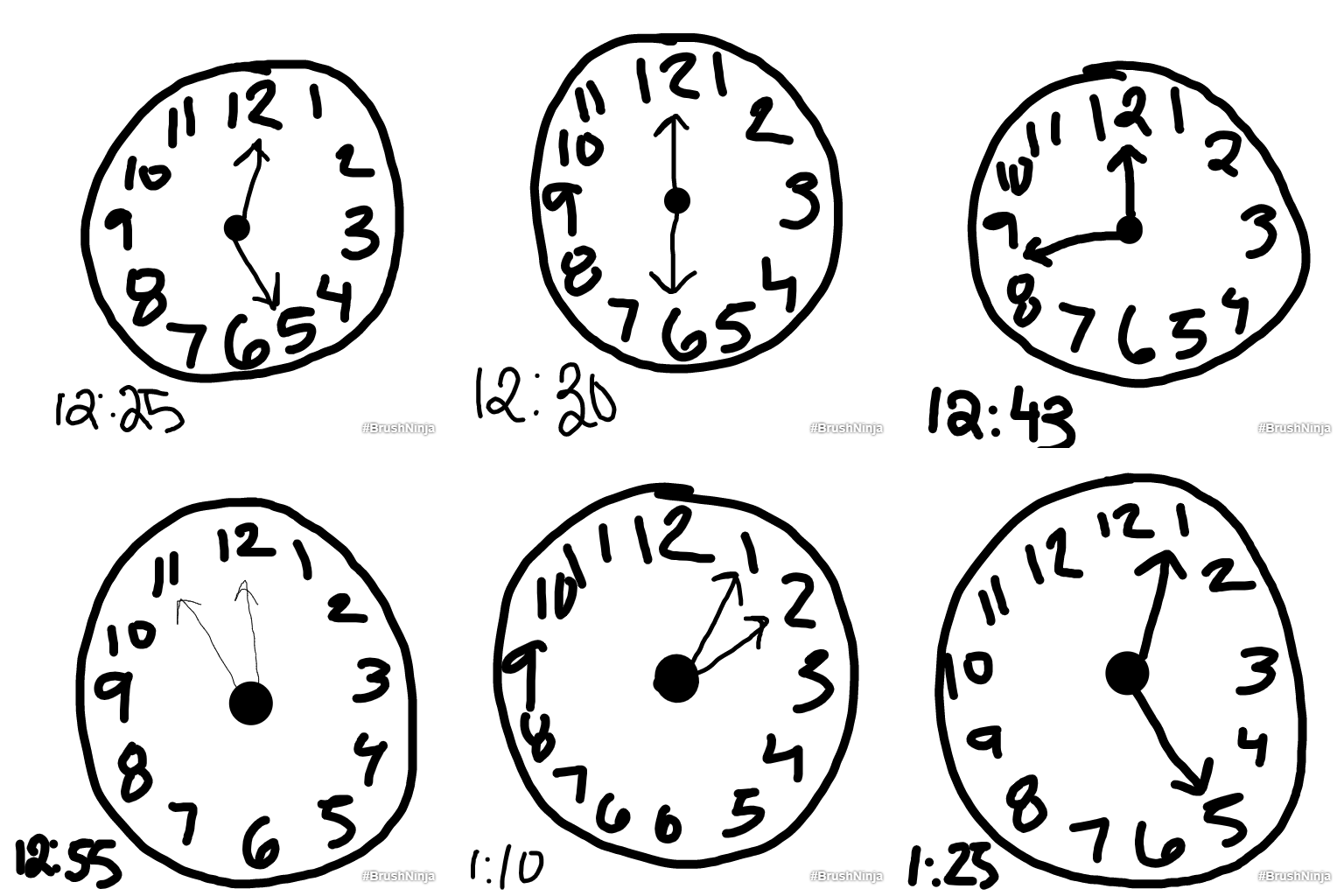
I am not a big fan of reading through tutorials, I’d rather figure out everything on my own. So I learned how to make the best gifs through these attempts. Here is the first gif I made. I was thinking students could potentially show off their time telling skills by drawing a clock and labeling what time it was as time passed. I simply drew images of clocks with different times over and over. When I clicked a play button, the app did the rest and created this gif:

Please do not stare at that image too long. Anyway, I hadn’t realized a lot when I first used this tool. The circles are always different sizes, the numbers on the clock never match up, and there are different thicknesses of paint. Plus, it’s moving at rapid speed. But creating these clocks was very simple. Young students could easily design their own gifs. To add more pictures, I just had to click a “plus” sign beneath the page. On my second attempt, I realized I could change the speed of the animation.

Using the settings icon on the site’s top right corner, I slowed down the animation speed. This is also when I realized I could add shape and text to my gifs. You can stamp the text on, so it will look similar every time. I do not suggest staring at this images too long as well. But I bet you’re wondering, all of those sledding hills have very different slopes. Are there ways to make sure you have the same images consistently? The answer is yes.

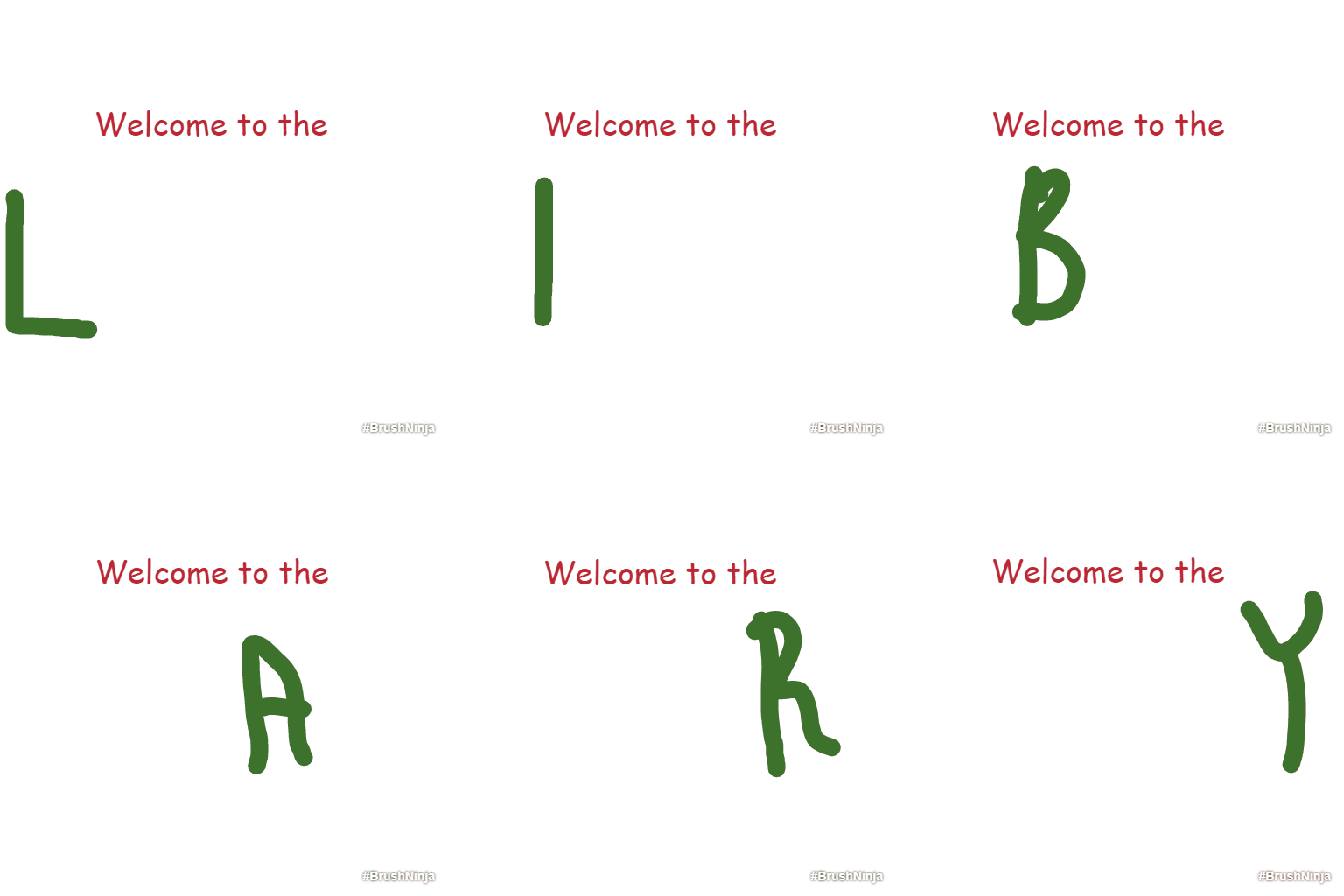
Here is the last gif I made. Above the sketchpad there are small icons that say “onion skin before” and “onion skin after.” After creating a new blank sketch, by clicking on these options you can see what a shadow of you’ve drawn before and draw over it, so it looks the same. This ensures that the words “Welcome to the” are always in the same place, and the letters in library will exist on the same plane. It’s much less of a jarring gift that way. Overall, although it took me a few different tries to figure out how to make successful gifs, the site was very easy to use and navigate. I would suggest students use this with a computer that has a mouse, or a touch screen, because drawing could be a challenge with the mouse pad on a laptop. But I can see students easily clicking through options and understanding their functions.

So what does this mean for educators? First, many libraries on fixed schedules have a similar schedule. After a read aloud and activity, students can check out books and explore makerspaces. This is a great application to have on the computer. Students would be able to make interesting and unique gifs, and flex their creativity skills. In elementary libraries, this can also work for a short activity. There is the option to have students tell time by drawing their own clocks. But students can also make gifts to show the life cycle of a flower, the components of an animal or bug, or the passage of the day or time in general. Perhaps this could even be used for younger grades that create “How-To” books or that have to write out the steps of something.

In secondary libraries, students can make gifs that support a project. They might be added to a PowerPoint or a web page that students design. Students might make gifs composed entirely of words. There are so many options for students to be creative and to tell stories with these gifs. The end result comes out looking cute, so there’s no pressure for students to feel like they have to be incredible artists.

There’s opportunities to reflect on how messages come across as well. How does a student feel when a message is rapidly displayed in a gif, instead of an image that slowly makes its way across the screen? What sort of message needs to come at rapid speed? This can connect to a greater lesson about the way messages are broadcast across the media. I’d like to see what students could create with these gifs and really see how their creativity could soar. Librarians can easily teach art teachers or other teachers to use this site as well, because it’s very simple. Students could even go on to teach the teachers.

LIS 568: Exploring Artifacts from Around the Globe

I’m a big fan of museums, especially history and art museums. So I was pretty excited when I saw an app that lets you explore artifacts right on your phone. No museum trip necessary. The app is called Civilisations AR. If the “s” in that word looks weird to your American eyes, it’s because the app was published by BBC and created by Nexus Studios. It’s a result of a BBC Two series that showcases artifacts and works of art across human history.

As soon as I opened the app, I was immediately guided through a tutorial narrated by a soothing British voice. And I was face to face with a 3D sarcophagus. The walk through taught me how to move the sarcophagus and how to make a pinching motion with my fingers to scale the size bigger or smaller. Clicking a flashlight at the bottom of the screen revealed the artifact’s “hot spots.” I could use a flashlight to see the mummy within and click on speaker icons where a narrator told me information relating to archaeological discoveries about the mummy. Another small book icon contained a short article about the history of the artifact.

After playing with all the apps features, I was left to my own devices. The augmented reality feature allows you to explore artifacts and artwork as if if they are actually in front of you. Bring the sculpture, the “The Kiss” by Auguste Rodin right to your classroom. To choose which artifact to view, users explore a digital globe. A user can explore all the hot spots, or limit the results and artifacts to explore ones that relate to topics like “Faith,” “The Human Body,” and “Progress and Modernity.” All of the artifacts are real and look incredibly real. As I viewed a Corinthian Helmet from Greece (500 – 600 BC), I was able to restore the gray color of the helmet to its original gold color. As I rotated the helmet, it made noises like I was actually touching the metal. Just looking at pictures or reading about it, I wouldn’t have been able to experience what this artifact was like when people were actually using it. This app brought history to life right in front of me.

The information that students can hear and read on the app is unbiased and factual. Information discusses the history of the artifact, where the artifact was discovered, and puts it into historical context. There are links to more information, and websites to the museums that house the artifacts. So students can begin to research on their own and gather information that pertains to their interests. Users can scale and see the actual size of artifacts and zoom in to the tiniest details. It can be a little tricky to move the artifacts around exactly where you want them to, and pinching the artifacts to size sometimes doesn’t always go to the way you want it. So there is a bit of a learning curve.

I can see this app working really well in middle school and high school libraries. Students can explore the app on their own or librarians could design passive program challenges, like scavenger hunts. Obviously, I would recommend this app for social studies teachers and librarians. But this could also work with any unit on art history, the human body, or religion across subjects. If students are learning about Egypt, mummies, and pharaohs, students can explore the outside and inside of a sarcophagus. Then the students might connect to what they learn more. Plus, the technology will motivate them to learn. This app could also be used in research and to identify where certain artifacts came from. Lines on the globe connect each artifact to each other, so students can begin to explore the relationships between the world’s nations and their histories.

This would also be exciting for any units about artists, and their lives and work. It’s like a museum experience, but students don’t have to worry about admission fees or transportation. This app really makes knowledge accessible, which is also what libraries are all about. The only downfall, is that users are limited to what artifacts the app presents. If they needed a specific one for a unit, but it’s not on the app, they may be out of luck. And I do think it’s possible to use this in an elementary library. If an elementary librarian that thinks the reading level is too much for their students, then they could use an iPad to show students about artifacts that relate to curriculum and help them learn how to touch the screen to manipulate the items.

Overall, using the app is fun and informational. I would recommend this to any educator that’s interested in bringing the museum experience into their classroom.

LIS 568: Making a Matching Game

This week I looked at Educandy, a site that allows you to create your own matching games. Science teachers to English teachers could use this to help their students learn vocabulary and become familiar with terms in a fun way. Using it was honestly pretty easy. To create an account, I made a unique name and password, and I was ready to start creating. To start a matching game, I named my activity and labeled it with a school subject. Then I simply clicked “matching pairs” to create matching games, then entered vocab words with their matching definitions. As soon as I uploaded what I liked, I simply scrolled down to play activities with my vocabulary.

Students can play a tic-tac-toe game (called Noughts and Crosses) with a friend. They can also fill in crossword puzzles, play memory, matching, and take mini-multiple choice quizzes. The games are fun, they keep track of how long an activity takes, and also keep score. They’re easy to play and access. Anyone can share what they’ve created by clicking the “share” button. A teacher could give their students a link and they would enter a password to access their games. Or a teacher could embed the link right onto their websites for students to use. A classroom teacher in almost any subject could create games of concepts and definitions. Students could easily access it and play at home, in the classroom, or in the library. The teacher could work with the librarian to have the games embedded on the library’s homepage, so students could access the games right from the library.

I created some games based on biology and the study of cells. It would work well for sixth or seventh graders students getting familiar with terminology before getting into the deeper concepts. The site does have a childlike design with small fuzzy characters, so I can also see this being great for younger students. It could be used to grow their reading skills. If you’d like to play the quiz I made, with my forgotten knowledge of the cell, play here: https://www.educandy.com/site/resource.php?activity-code=6eec

A librarian could also create quizzes on something like information literacy, digital citizenship, or even just quiz students on famous books if that’s something kids would be into. A librarian can also share this platform with teachers that want to go beyond Quizlet or simple vocabulary tests. One thing I wish I could create, is a genre test. Students would answer questions to determine what genre of fiction they are like, or would like to read. This is closer to a personality test, where there are no lowered scores or wrong answers. Since all of the options on Educandy are simple one question, one answers types. Clicking the wrong answer results in a lower score, so other types of more complex quizzes may not be possible.

It was easy to make an account, so I also think there’s a chance to have students make their own account and make their own quizzes. This is more for secondary students. Then they could share those quizzes with a friend and test their knowledge to make sure they have correct definitions and to share their views. It would be a way for students to create their own study guides, while developing some technology skills. If it’s something that really works for the student, then they can make their own games for other classes.

However, this sort of quiz may not involve intense critical thinking skills or writing skills. There’s no space for students to type their opinions, instead they just matching simple terms or match a set answer to a question. But helping students to match these and build their vocabularies, gives them a foundation to understand more complex questions and can help them to answer critical thinking questions as they grow, and investigate deeper into a unit. Overall, I had fun creating quizzes and playing the games. For young and old students, this platform is engaging and easy to use.

Design a site like this with WordPress.com
Get started