To find a technology tool to review this week, I searched through http://www.ala.org/aasl/awards/best, a list of the best websites for teaching and learning in 2019. I came across a tool called Brush Ninja. This site literally allows anyone to draw and create their own gifs. There is no login or sign up required, this site is accessible by literally anyone. The creators strive to make the site free. You can check it out here: https://brush.ninja/. I decided that it was time to draw my own gif.
The options to make gifs are similar to something you would see on Microsoft Paint. I’m a 90’s baby, I grew up coming home from school and playing on Paint. This is like that, but for the next generation. I used the touchscreen on my computer to draw what I wanted. I could adjust the thickness of my brush and change the colors. It’s easy to adjust the brightness or darkness of the colors. There are other options to add shapes, text, and to manipulate the items on screen.
I am not a big fan of reading through tutorials, I’d rather figure out everything on my own. So I learned how to make the best gifs through these attempts. Here is the first gif I made. I was thinking students could potentially show off their time telling skills by drawing a clock and labeling what time it was as time passed. I simply drew images of clocks with different times over and over. When I clicked a play button, the app did the rest and created this gif:
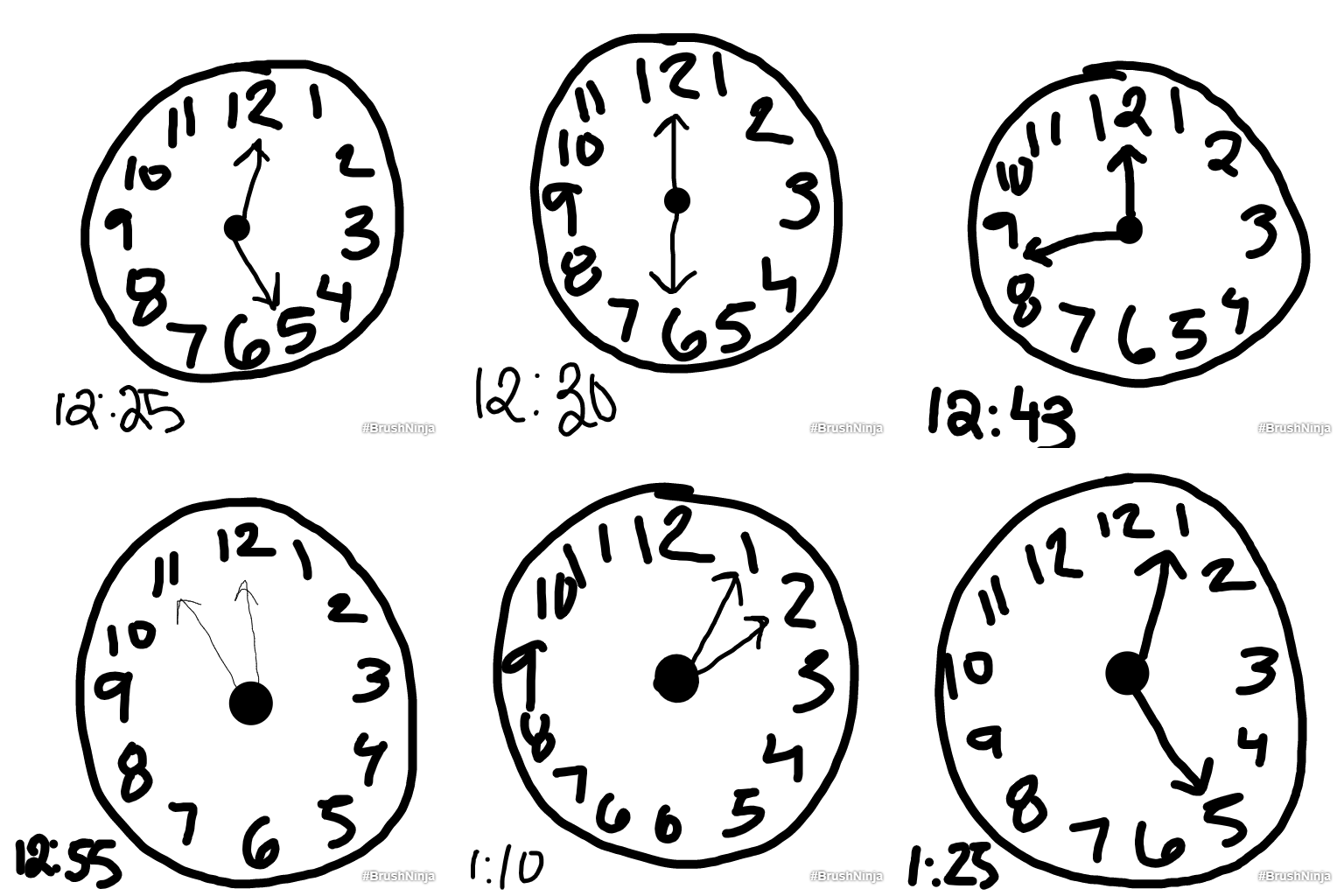
Please do not stare at that image too long. Anyway, I hadn’t realized a lot when I first used this tool. The circles are always different sizes, the numbers on the clock never match up, and there are different thicknesses of paint. Plus, it’s moving at rapid speed. But creating these clocks was very simple. Young students could easily design their own gifs. To add more pictures, I just had to click a “plus” sign beneath the page. On my second attempt, I realized I could change the speed of the animation.
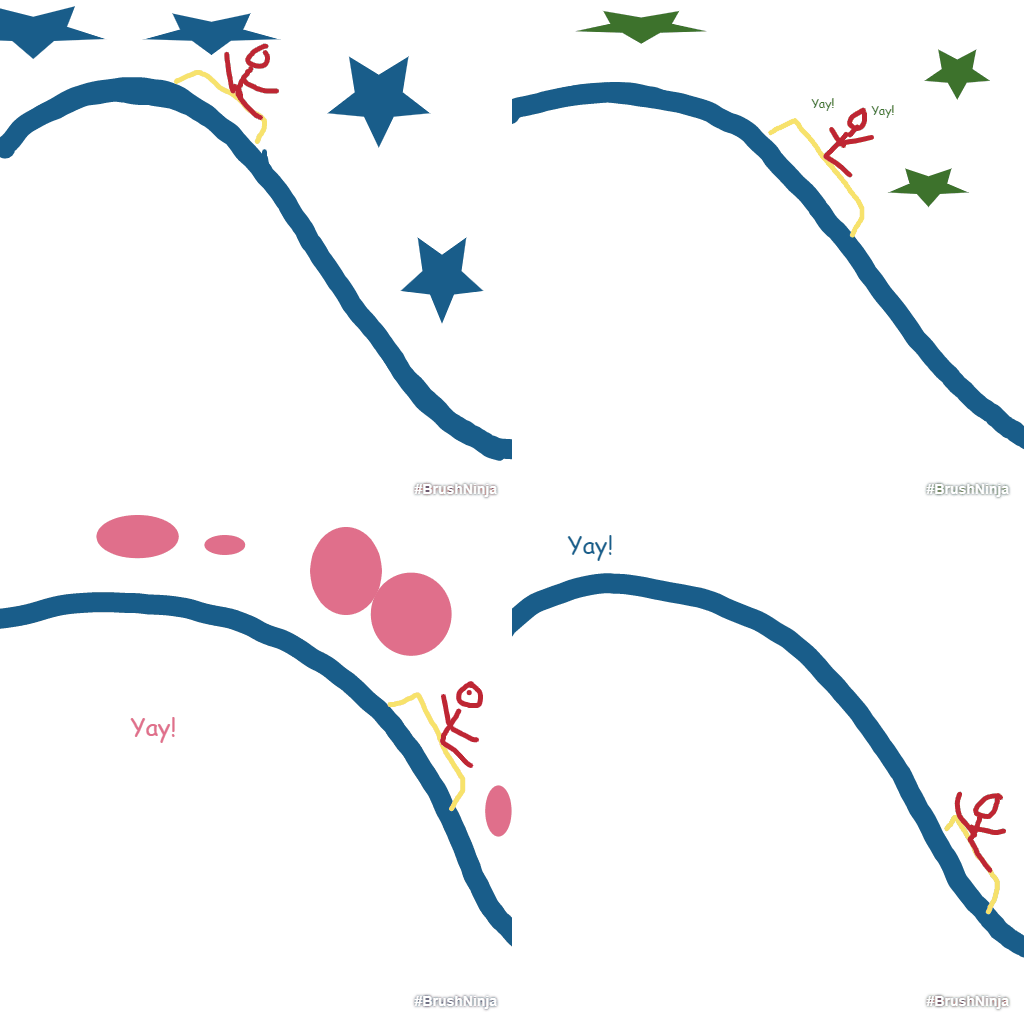
Using the settings icon on the site’s top right corner, I slowed down the animation speed. This is also when I realized I could add shape and text to my gifs. You can stamp the text on, so it will look similar every time. I do not suggest staring at this images too long as well. But I bet you’re wondering, all of those sledding hills have very different slopes. Are there ways to make sure you have the same images consistently? The answer is yes.
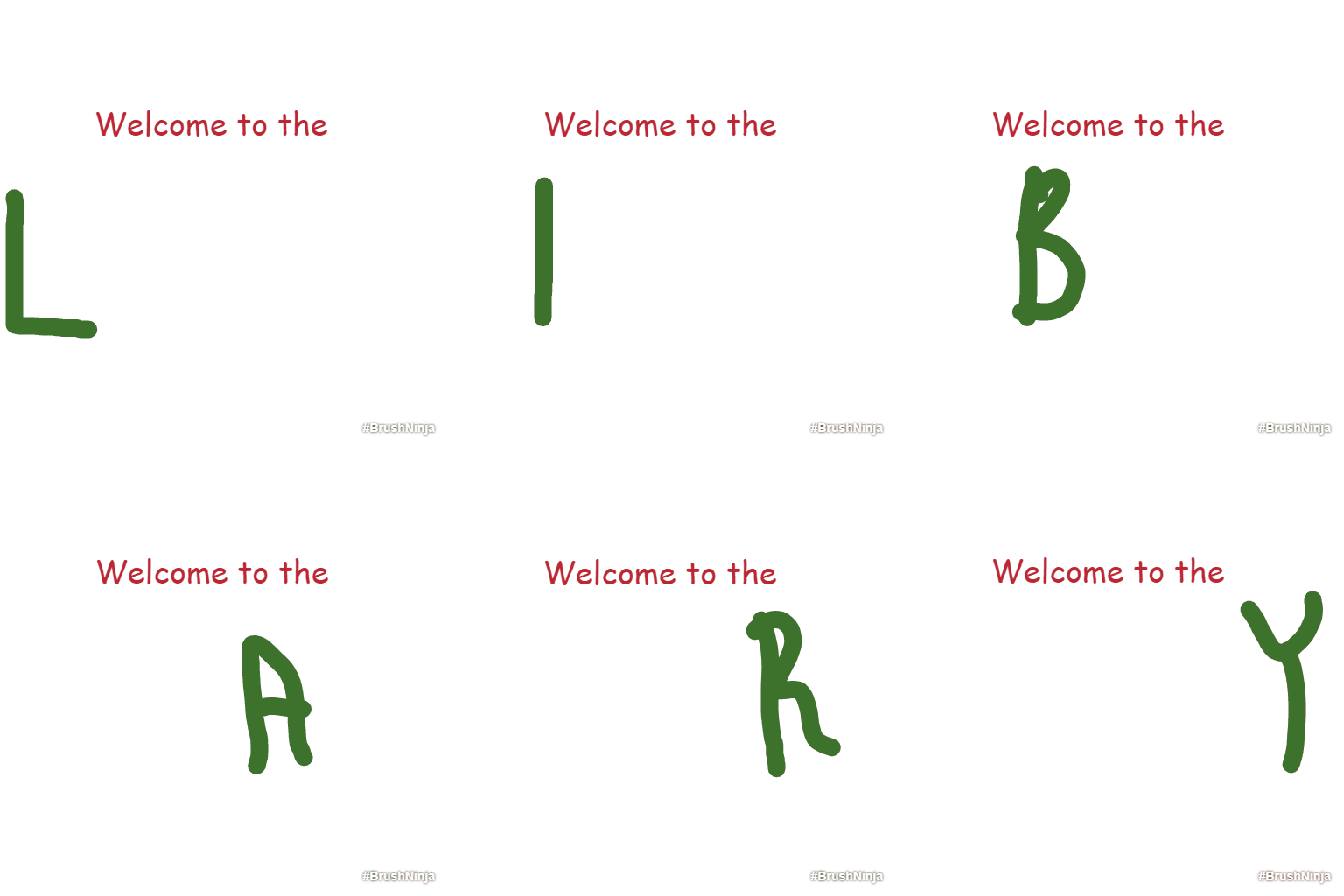
Here is the last gif I made. Above the sketchpad there are small icons that say “onion skin before” and “onion skin after.” After creating a new blank sketch, by clicking on these options you can see what a shadow of you’ve drawn before and draw over it, so it looks the same. This ensures that the words “Welcome to the” are always in the same place, and the letters in library will exist on the same plane. It’s much less of a jarring gift that way. Overall, although it took me a few different tries to figure out how to make successful gifs, the site was very easy to use and navigate. I would suggest students use this with a computer that has a mouse, or a touch screen, because drawing could be a challenge with the mouse pad on a laptop. But I can see students easily clicking through options and understanding their functions.
So what does this mean for educators? First, many libraries on fixed schedules have a similar schedule. After a read aloud and activity, students can check out books and explore makerspaces. This is a great application to have on the computer. Students would be able to make interesting and unique gifs, and flex their creativity skills. In elementary libraries, this can also work for a short activity. There is the option to have students tell time by drawing their own clocks. But students can also make gifts to show the life cycle of a flower, the components of an animal or bug, or the passage of the day or time in general. Perhaps this could even be used for younger grades that create “How-To” books or that have to write out the steps of something.
In secondary libraries, students can make gifs that support a project. They might be added to a PowerPoint or a web page that students design. Students might make gifs composed entirely of words. There are so many options for students to be creative and to tell stories with these gifs. The end result comes out looking cute, so there’s no pressure for students to feel like they have to be incredible artists.
There’s opportunities to reflect on how messages come across as well. How does a student feel when a message is rapidly displayed in a gif, instead of an image that slowly makes its way across the screen? What sort of message needs to come at rapid speed? This can connect to a greater lesson about the way messages are broadcast across the media. I’d like to see what students could create with these gifs and really see how their creativity could soar. Librarians can easily teach art teachers or other teachers to use this site as well, because it’s very simple. Students could even go on to teach the teachers.
 Gabrielle Weiss Blog